Showing posts with label Add New Widget. Show all posts

21 Feb 2013

How to Make the Blogger Posts Have a Calendar for the Date in


It's quite common to see calendar style dates next to some WordPress posts, however for the Blogger platform it wouldn't be an easy task to add it. But who said it's impossible? You don't have to look much further than this blog. In this tutorial i'll show you how to create a calendar style date for your Blogger posts.


How to create calendar style dates in Blogger


For adding the calendar style to our blog date header, we should firstly setup the displaying for the date. Log in into your Blogger Dashboard, go to Settings > Formatting - look for the Date Header Format option and change the date so that it is the first day, then the month and finally the year, for example: 28 July 2012 - see the screenshots below


calendar style, calendar icons, blogger tips
If you're using the newer interface: go to Settings > Language and Formatting - Date Header Format and change the date format as you can see in my example below:


Now go to Design > Edit HTML > thick the "Expand Widget Templates" checkbox and search (CTRL + F) the following line:

<h2 class='date-header'><span><data:post.dateHeader/></span></h2>

If you find it twice, replace it twice with the code below:

<div id='Date'>
<script>changeDate(&#39;<data:post.dateHeader/>&#39;);</script>
</div>
<b:else/>
<div id='Date'>
<script>changeDate(&#39;&#39;);</script>
</div>

Now add the following code just ABOVE </head> (CTRL + F to find it)

<script type='text/javascript'>
//<![CDATA[
var DateCalendar;
function changeDate(d){
if (d == "") {
d = DateCalendar;
}
var da = d.split(' ');
day = "<strong class='date_day'>"+da[0]+"</strong>";
month = "<strong class='date_month'>"+da[1].slice(0,3)+"</strong>";
year = "<strong class='date_year'>"+da[2]+"</strong>";
document.write(month+day+year);
DateCalendar = d;
}
//]]>
</script>
<b:if cond='data:blog.pageType != &quot;static_page&quot;'>
<style type='text/css'>
/* Calendar style date
----------------------------------------------- */
#Date {
background: transparent url(https://blogger.googleusercontent.com/img/b/R29vZ2xl/AVvXsEgjh6qCPrwng6U2mVmA7UyhIBCOjHT1POp1h9CWnCZXYf-RFOvfGBHLrRiMdjoEVxSlCHuTIIxDBeQTT3TVXFxM3f7AJANjJWc8BPazbesweIfepDutqU0nM_rECRWVZrlca1WRebWx3sR8/s1600/calendar07.png) no-repeat;
display: block;
width:60px;
height:60px;
float: left;
margin: 15px 2px 0 -108px;
padding: 0 0 8px 0px;
border: 0;
text-transform: uppercase;
}
.date_month {
display: block;
font-size: 15px;
font-weight:bold;
margin-top:-1px;
text-align:center;
color:#ffffff; /* Month's color */
}
.date_day {
display: block;
font-size: 28px;
font-weight:bold;
margin-top:-8px;
text-align:center;
color:#282828; /* Day's color */
}
.date_year {
display: block;
font-size: 10px;
margin-top:-8px;
text-align:center;
color:#282828; /* Year's color */
}
</style>
</b:if>


Before saving your Template:

  • To change the calendar style, replace the url in blue with yours;
  • If the calendar doesn't appear correctly, change -108 with 0;
  • With green are marked the areas where you can change the color of the dates
Now Preview your Template and if everything is ok, click on the Save button.

14 Sept 2012

How To Add New Widget Sections In Blogger On Different Places?

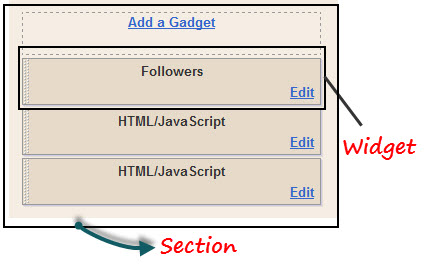
This is a detailed post in which i will try to teach you how to add extra columns to your blogger template. It is very easy but for this you must know a little about HTML. Follow my steps and try and please give your feedback. If required any further information, feel free to ask.


widget section

Step #1 


First of all go to the HTML editor of your blogger template. Do not click "Expand Widgets"


Search for :

 <body>


Now the actual works starts from here.

Adding New Widget Section In The Header Area


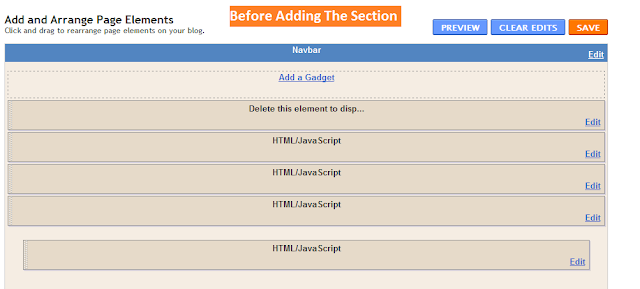
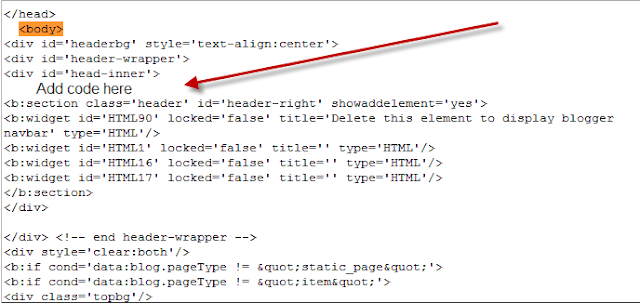
before adding the blogger section


Now search for 

<div id='headerbg'>

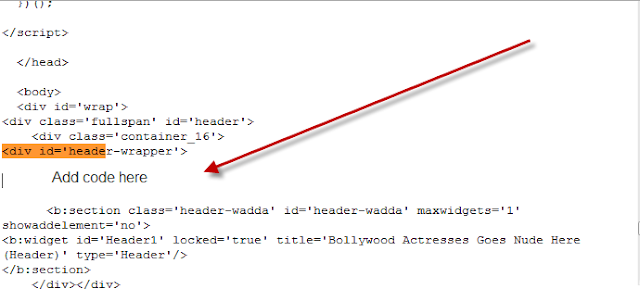
 in some cases you might search for this

<div id='header-wrapper'>

Here is the code for the new Widget Section

<b:if cond='data:blog.url == data:blog.homepageUrl'><b:section class='sidebar' id='magazine-left' showaddelement='yes' > <b:widget id='Text51' locked='false' title='Test Title 1' type='Text'/> </b:section> </b:if>


You have to change the Orange text if you want to use this code again and again in your template. You can write anything. This widget will be shown only in home page. If you want it on every page, than use this code


<b:section class='sidebar' id='magazine-left' showaddelement='yes' > <b:widget id='Text51' locked='false' title='Test Title 1' type='Text'/> </b:section>


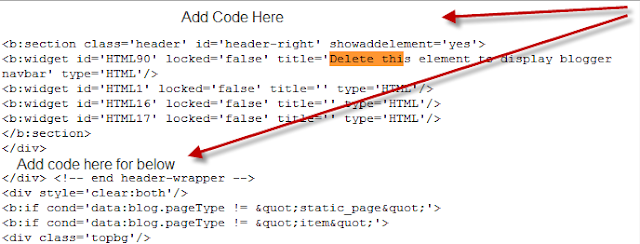
Now here is where to add the above code


OR 


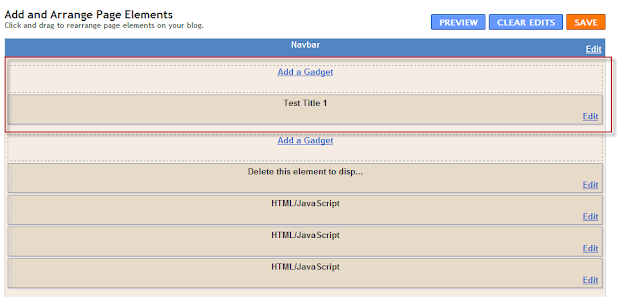
Now here is the Change


The easy way to find where to add the widget is that search for the existing widget. For example, i gave a title " Delete this element" to a widget. Now if i want to put a new widget section above it, than simply search for " Delete this element " and paste the code above it.


How to Add new widget Section above the blog Posts :


Search for


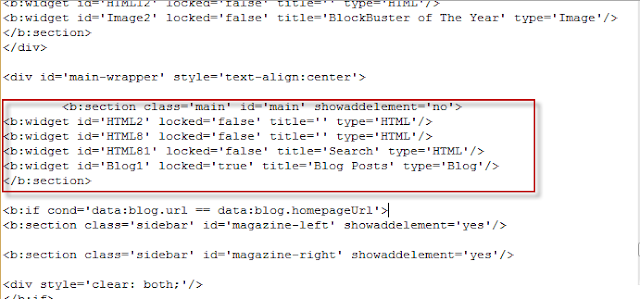
<b:widget id='Blog1' locked='true' title='Blog Posts' type='Blog'/>


Remember you cannot add a section in between the previous section. Just like this


Now if you want new widgets above the Blog Posts, than add the code above the code shown in the picture. If you want below the post, than simply add the code below.

Note: Your code might be some different, so you have to look yourself. Only thing to remember is that you have to put your new code before <b:section or after </b:section> not in between.


How To Add A New Widget In The Sidebar


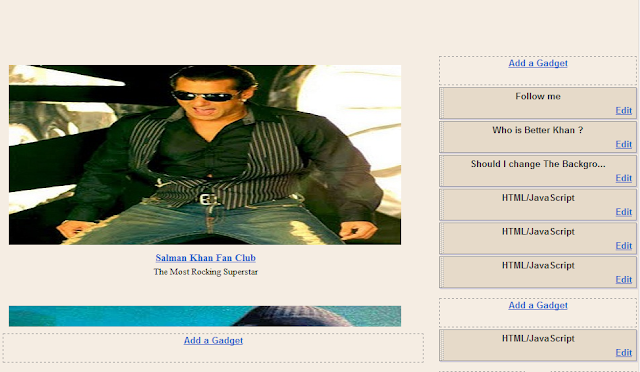
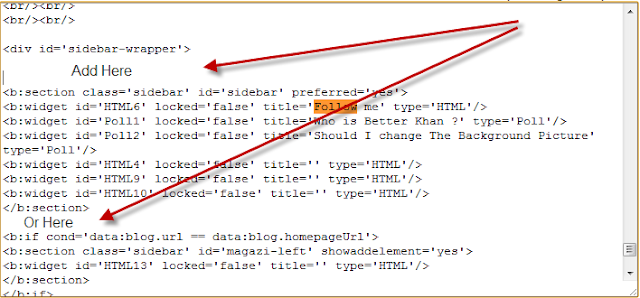
To add new widget section in the sidebar, simply do the easy work as i mentioned above. Search for the existing widget and choose where to add, BELOW or ABOVE. Just like this.


In my case, i will search for " Follow me "


Now add the code above or below the entire section.

Just like this, you can add new widgets on any place in your template. Simply add a new widget, give a title to it and than search for that title in HTML editor and place the new code Above or Below. Its Simple. But remember, add the code before the opening section or after the closing section.

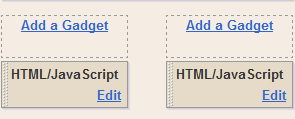
If you want to add Two columns at a time just like the one below


Than simply follow these steps. The steps are same just one step will be added.

Use this code instead of the one above

<b:if cond='data:blog.url == data:blog.homepageUrl'>
<b:section class='sidebar' id='magazine-left' showaddelement='yes' >
<b:widget id='Text51' locked='false' title='Test Title 1' type='Text'/>
</b:section>

<b:section class='sidebar' id='magazine-right' showaddelement='yes' >
<b:widget id='Text52' locked='false' title='Test Title 2' type='Text'/>
</b:section>

<div style="clear: both;"></div>
</b:if>


If you want to show this widget section on every page than use this


<b:section class='sidebar' id='magazine-left' showaddelement='yes' >
<b:widget id='Text51' locked='false' title='Test Title 1' type='Text'/>
</b:section>

<b:section class='sidebar' id='magazine-right' showaddelement='yes' >
<b:widget id='Text52' locked='false' title='Test Title 2' type='Text'/>
</b:section>

<div style="clear: both;"></div>


Search for </b:skin> and add this code above it

#magazine-left {
width: 45%;
float: left;
}
#magazine-right {
width: 45%;
float: right;
}


Note: If you want to use this code again and again than simply just change the text in Orange. The Orange text in first and second part of code should be similar.
Related Posts Plugin for WordPress, Blogger...

Subscribe Updates, Its FREE!