Showing posts with label Photo Effect. Show all posts

25 Nov 2012

jQuery 5 In One Image Effects For Your Photos On Blogger

Bloggers are always using images and photos on their blogs so in this post we will see how you can add five different effects to those images.The neat thing about this is you just have to add some jQuery and Css to your template (We make it easy) then you can easily add from 5 hover effects to add some spice to your blog images.

Lets look through the effects and you can also check out the demo to see it in action.

The five effects will be :

Effect 1 - Popout, this is a basic pop out effect on hover the image will pop out from the page.
Effect 2 - SliceDown, The image will have an dark overlay and on hover a slice effect reveals the image clearly.
Effect 3 - BoxRandom, The image has a light overlay and on hover the image is revealed by boxes randomly clearing.
Effect 4 - FoldLeft, Once again the image has a light overlay and this time on hover an accordion fold effect reveals the image.
Effect 5 - RainGrowReverse, This time on hover the image is revealed from corner to corner.

Add The Image Effects To Blogger


Step 1. In Your (New Design) Blogger Dashboard Click The Drop Down Menu For Your Blog > Choose Template > Then Edit Html >

Step 2. Find the following piece of code in your blogs Html : (Click Ctrl and F for a search bar to help find the code - How To Find Code In Blogger Template Template)


</head>

Step 3. Copy and Paste the following code Directly Above / Before </head>

<script src='http://code.jquery.com/jquery-1.7.1.min.js' type='text/javascript'/>
<script src='http://yourjavascript.com/143237963/jquery.adipoli.min.js' type='text/javascript'/>
<script type='text/javascript'>
/*<![CDATA[*/
jQuery(function($pice){
$pice('.effect1').adipoli({
'startEffect' : 'normal',
'hoverEffect' : 'popout'
});
$pice('.effect2').adipoli({
'startEffect' : 'overlay',
'hoverEffect' : 'sliceDown'
});
$pice('.effect3').adipoli({
'startEffect' : 'transparent',
'hoverEffect' : 'boxRandom'
});
$pice('.effect4').adipoli({
'startEffect' : 'overlay',
'hoverEffect' : 'foldLeft'
});
$pice('.effect5').adipoli({
'startEffect' : 'transparent',
'hoverEffect' : 'boxRainGrowReverse'
});

});
/*]]>*/

</script>

Step 4. Find the following piece of code in your blogs Html : (Click Ctrl and F for a search bar to help find the code - How To Find Code In Blogger Template Template)
]]></b:skin>

Step 5. Now Copy And Paste This Code Directly Above / Before ]]></b:skin>
.adipoli-wrapper{position:relative;display:inline-block;margin:auto}
.adipoli-slice{display:block;position:absolute;z-index:0;height:100%}
.adipoli-box{display:block;position:absolute;z-index:0}
.post img{border:0!important;margin:0!important;padding:0!important}
.adipoli-wrapper>img,.adipoli-before,.adipoli-after{position:absolute;z-index:0}

Step 6. Save your template.

Adding The Effect To Your Images


Now we need to add a class tag to images we want the effect on.So as you seen them on the demo page; if you want to use Effect 1 you add class="effect1" for Effect 2 you add class="effect2" and so on.Below I show were to add this class tag on your images.

OK if your uploading your images directly onto Blogger we have an easy way to add the class.The code below is how the html for an image looks when uploaded to Blogger.

Important - This is when you upload the image in compose mode then switch to html mode.

<div class="separator" style="clear: both; text-align: center;">
<a href="https://blogger.googleusercontent.com/img/b/R29vZ2xl/AVvXsEijWgEUEC9dVFqyFh-XYJmI3bON7yACg1mxyvgaREKONvM6aqQVuJFa_YD2uFbZpzIQxCa4fvXFU9it6H3queQbKBJg3c-lg1C58zzxMTF9rwmewtwNs6mGueoGvfl8CIs24Y1NMyMBTP4-/s1600/image-effects-image-2.png" imageanchor="1" style="margin-left: 1em; margin-right: 1em;"><img border="0" src="https://blogger.googleusercontent.com/img/b/R29vZ2xl/AVvXsEijWgEUEC9dVFqyFh-XYJmI3bON7yACg1mxyvgaREKONvM6aqQVuJFa_YD2uFbZpzIQxCa4fvXFU9it6H3queQbKBJg3c-lg1C58zzxMTF9rwmewtwNs6mGueoGvfl8CIs24Y1NMyMBTP4-/s1600/image-effects-image-2.png" /></a></div>

You can see highlighted div class="separator" we change this to div class="effect1" (or effect2 etc..) like below :

<div class="effect1" style="clear: both; text-align: center;">
<a href="https://blogger.googleusercontent.com/img/b/R29vZ2xl/AVvXsEijWgEUEC9dVFqyFh-XYJmI3bON7yACg1mxyvgaREKONvM6aqQVuJFa_YD2uFbZpzIQxCa4fvXFU9it6H3queQbKBJg3c-lg1C58zzxMTF9rwmewtwNs6mGueoGvfl8CIs24Y1NMyMBTP4-/s1600/image-effects-image-2.png" imageanchor="1" style="margin-left: 1em; margin-right: 1em;"><img border="0" src="https://blogger.googleusercontent.com/img/b/R29vZ2xl/AVvXsEijWgEUEC9dVFqyFh-XYJmI3bON7yACg1mxyvgaREKONvM6aqQVuJFa_YD2uFbZpzIQxCa4fvXFU9it6H3queQbKBJg3c-lg1C58zzxMTF9rwmewtwNs6mGueoGvfl8CIs24Y1NMyMBTP4-/s1600/image-effects-image-2.png" /></a></div>

If you are adding images in html mode or adding externally hosted images your image code will be like this :

<a href="https://blogger.googleusercontent.com/img/b/R29vZ2xl/AVvXsEijWgEUEC9dVFqyFh-XYJmI3bON7yACg1mxyvgaREKONvM6aqQVuJFa_YD2uFbZpzIQxCa4fvXFU9it6H3queQbKBJg3c-lg1C58zzxMTF9rwmewtwNs6mGueoGvfl8CIs24Y1NMyMBTP4-/s1600/image-effects-image-2.png"><img src="https://blogger.googleusercontent.com/img/b/R29vZ2xl/AVvXsEijWgEUEC9dVFqyFh-XYJmI3bON7yACg1mxyvgaREKONvM6aqQVuJFa_YD2uFbZpzIQxCa4fvXFU9it6H3queQbKBJg3c-lg1C58zzxMTF9rwmewtwNs6mGueoGvfl8CIs24Y1NMyMBTP4-/s1600/image-effects-image-2.png" /></a>

We add the class as shown below :

<a href="https://blogger.googleusercontent.com/img/b/R29vZ2xl/AVvXsEijWgEUEC9dVFqyFh-XYJmI3bON7yACg1mxyvgaREKONvM6aqQVuJFa_YD2uFbZpzIQxCa4fvXFU9it6H3queQbKBJg3c-lg1C58zzxMTF9rwmewtwNs6mGueoGvfl8CIs24Y1NMyMBTP4-/s1600/image-effects-image-2.png"><img class="effect1" src="https://blogger.googleusercontent.com/img/b/R29vZ2xl/AVvXsEijWgEUEC9dVFqyFh-XYJmI3bON7yACg1mxyvgaREKONvM6aqQVuJFa_YD2uFbZpzIQxCa4fvXFU9it6H3queQbKBJg3c-lg1C58zzxMTF9rwmewtwNs6mGueoGvfl8CIs24Y1NMyMBTP4-/s1600/image-effects-image-2.png" /></a>

For this we used the idea from the Adipoli jQuery Image Hover Plugin, make sure to check out more of our Blogger Tutorials.

14 Sept 2012

CSS3 Featured Post Widget With Zoom Mask Effect!

css3 featured post widget
 
Add the widget to your blog

Navigate to Blogger Dashboard >> Design >> Add a Gadget and paste the entire code with in it. OR you could add the widget directly into your blog template via going in Edit HTML option.

In case you wish to delete any section of the featured post widget, simply remove the following occurrences of section below:

<td>
      <div class='view view-first'>
                    <img src='Fourth Post Image Link'/>
                    <div class='mask'>
                        <h2>Fourth Post Heading  </h2>
                        <p>Fourth Post Paragraph</p>
                        <a class='info' href='Fourth Post Link'>Read More</a>
                    </div>
      
    </div>
      
      
    </td>
Customize the widget code


<div align='center'>
<div id='background'>
<table>
  <tr><td>
  <div class='view view-first'>
                    <img src='First Post Image Link'/>
                    <div class='mask'>
                        <h2>First Post Heading</h2>
                      <p>

First Post Paragraph </p>
                        <a class='info' href='First Post Link'>Read More</a>
                    </div>
                </div>  </td>
 
 <td> <div class='view view-first'>
                    <img src='Second Post Image Link'/>
                    <div class='mask'>
                        <h2>Second Post Heading </h2>
                        <p>Second Post Paragraph</p>
                        <a class='info' href='Second Post Link'>Read More</a>
                    </div>
                </div>  
   </td> <td>
<div class='view view-first'>
                    <img src='Third Post Image Link'/>
                    <div class='mask'>
                        <h2>Third Post Heading </h2>
                        <p>Third Post Paragraph</p>
                        <a class='info' href='Third Post Link'>Read More</a>
                    </div>
      
    </div>  
  </td>
  </tr>
  <tr>
    <td>
      <div class='view view-first'>
                    <img src='Fourth Post Image Link'/>
                    <div class='mask'>
                        <h2>Fourth Post Heading  </h2>
                        <p>Fourth Post Paragraph</p>
                        <a class='info' href='Fourth Post Link'>Read More</a>
                    </div>
      
    </div>
      
      
    </td>
    <td>
      
      <div class='view view-first'>
                    <img src='Fifth Post Image Link'/>
                    <div class='mask'>
                        <h2>Fifth Post Heading  </h2>
                        <p>Fifth Post Paragraph</p>
                        <a class='info' href='Fifth Post Link'>Read More</a>
                    </div></div>
      
    </td>  
        
        <td>
          <div class='view view-first'>
                    <img src='Sixth Post Image Link '/>
                    <div class='mask'>
                        <h2>Sixth Post Heading  </h2>
                        <p>Sixth Post paragraph</p>
                        <a class='info' href='Sixth Post Link'>Read More</a>
                    </div>
          </div>
          
          <p style=" line-height:0px; font-size:8px; font-weight:bold; text-align:right;padding-top:0px;"><a style="color:#D3D3D3;" href="http://www.bloggingehow.com">widgets</a></p>
          
          
        </td>
                  
    
  </tr>
  
  
</table>
</div>
</div>
<style>
  
#background {

background: #FAF8CC; width:100%; border: 1px solid #C9C299;
}
  
.view-first img {
   -webkit-transition: all 0.2s linear;
   -moz-transition: all 0.2s linear;
   -o-transition: all 0.2s linear;
   -ms-transition: all 0.2s linear;
   transition: all 0.2s linear;
}
.view-first .mask {
   -ms-filter: &quot;progid: DXImageTransform.Microsoft.Alpha(Opacity=0)&quot;;
   filter: alpha(opacity=0);
   opacity: 0;
   background-color: rgba(219,127,8, 0.7);
   -webkit-transition: all 0.4s ease-in-out;
   -moz-transition: all 0.4s ease-in-out;
   -o-transition: all 0.4s ease-in-out;
   -ms-transition: all 0.4s ease-in-out;
   transition: all 0.4s ease-in-out;
}
.view-first h2 {
   -webkit-transform: translateY(-100px);
   -moz-transform: translateY(-100px);
   -o-transform: translateY(-100px);
   -ms-transform: translateY(-100px);
   transform: translateY(-100px);
   -ms-filter: &quot;progid: DXImageTransform.Microsoft.Alpha(Opacity=0)&quot;;
   filter: alpha(opacity=0);
   opacity: 0;
   -webkit-transition: all 0.2s ease-in-out;
   -moz-transition: all 0.2s ease-in-out;
   -o-transition: all 0.2s ease-in-out;
   -ms-transition: all 0.2s ease-in-out;
   transition: all 0.2s ease-in-out;
}
.view-first p {
   -webkit-transform: translateY(100px);
   -moz-transform: translateY(100px);
   -o-transform: translateY(100px);
   -ms-transform: translateY(100px);
   transform: translateY(100px);
   -ms-filter: &quot;progid: DXImageTransform.Microsoft.Alpha(Opacity=0)&quot;;
   filter: alpha(opacity=0);
   opacity: 0;
   -webkit-transition: all 0.2s linear;
   -moz-transition: all 0.2s linear;
   -o-transition: all 0.2s linear;
   -ms-transition: all 0.2s linear;
   transition: all 0.2s linear;
}
.view-first:hover img {
   -webkit-transform: scale(1.1,1.1);
   -moz-transform: scale(1.1,1.1);
   -o-transform: scale(1.1,1.1);
   -ms-transform: scale(1.1,1.1);
   transform: scale(1.1,1.1);
}
.view-first a.info {
   -ms-filter: &quot;progid: DXImageTransform.Microsoft.Alpha(Opacity=0)&quot;;
   filter: alpha(opacity=0);
   opacity: 0;
   -webkit-transition: all 0.2s ease-in-out;
   -moz-transition: all 0.2s ease-in-out;
   -o-transition: all 0.2s ease-in-out;
   -ms-transition: all 0.2s ease-in-out;
   transition: all 0.2s ease-in-out;
}
.view-first:hover .mask {
   -ms-filter: &quot;progid: DXImageTransform.Microsoft.Alpha(Opacity=100)&quot;;
   filter: alpha(opacity=100);
   opacity: 1;
}
.view-first:hover h2,
.view-first:hover p,
.view-first:hover a.info {
   -ms-filter: &quot;progid: DXImageTransform.Microsoft.Alpha(Opacity=100)&quot;;
   filter: alpha(opacity=100);
   opacity: 1;
   -webkit-transform: translateY(0px);
   -moz-transform: translateY(0px);
   -o-transform: translateY(0px);
   -ms-transform: translateY(0px);
   transform: translateY(0px);
}
.view-first:hover p {
   -webkit-transition-delay: 0.1s;
   -moz-transition-delay: 0.1s;
   -o-transition-delay: 0.1s;
   -ms-transition-delay: 0.1s;
   transition-delay: 0.1s;
}
.view-first:hover a.info {
   -webkit-transition-delay: 0.2s;
   -moz-transition-delay: 0.2s;
   -o-transition-delay: 0.2s;
   -ms-transition-delay: 0.2s;
   transition-delay: 0.2s;
}
        .view {
   width: 300px;
   height: 200px;
   margin: 10px;
  
   border: 2px solid #000000;
   overflow: hidden;
   position: relative;
   text-align: center;
   -webkit-box-shadow: 1px 1px 2px #e6e6e6;
   -moz-box-shadow: 1px 1px 2px #e6e6e6;
   box-shadow: 1px 1px 2px #e6e6e6;
   cursor: default;
   background: #fff url(../images/bgimg.jpg) no-repeat center center;
}
.view .mask,.view .content {
   width: 300px;
   height: 200px;
   position: absolute;
   overflow: hidden;
   top: 0;
   left: 0;
}
.view img {
   display: block;
   position: relative;
}
.view h2 {
   text-transform: uppercase;
   color: #fff;
   text-align: center;
   position: relative;
   font-size: 17px;
   padding: 10px;
   background: rgba(0, 0, 0, 0.8);
   margin: 8px 0 0 0;
}
.view p {
   font-family: Georgia, serif;
   font-style: italic;
   font-size: 12px;
   position: relative;
   color: #fff;
   padding: 10px 20px 20px;
   text-align: center;
}
.view a.info {
   display: inline-block;
   text-decoration: none;
   padding: 5px 40px ;
   background: #000;
   color: #fff;
   text-transform: uppercase;
   -webkit-box-shadow: 0 0 1px #000;
   -moz-box-shadow: 0 0 1px #000;
   box-shadow: 0 0 1px #000;
}
.view a.info: hover {
   -webkit-box-shadow: 0 0 5px #000;
   -moz-box-shadow: 0 0 5px #000;
   box-shadow: 0 0 5px #000;
}
  
</style>

Now simply edit the link above with your own featured post links. Every different post boxes codes are highlighted with different color so to distinguish them easily. Note that the paragraphs should not be longer than 75-80 characters.

Use our character count tool to count the characters in your paragraph that you wish to add in.
Once you have customized the widget as per your needs, its time to add the widget to your blog.

Add Drop Shadows to Images and Expand them on Mouse Hover

Image-Drop-Shadows


How To add Drop Shadows and Enlarge Images on Mouse Hover?

The methods are really simple.
  1. Go to Blogger > Design > Edit HTML
  2. Back up your template
  3. Search for ]]></b:skin>
  4. Just above ]]></b:skin> paste the following code, 


.MBT-CSS3 img{
-webkit-transform:scale(0.7); /*Webkit 0.7 times the original Image size*/
-moz-transform:scale(0.7); /*Mozilla 0.7 times the original Image size*/
-o-transform:scale(0.7); /*Opera 0.7 times the original Image size*/
-webkit-transition-duration: 0.5s; /*Webkit: Animation duration*/
-moz-transition-duration: 0.5s; /*Mozilla Animation duration*/
-o-transition-duration: 0.5s; /*Opera Animation duration*/
opacity: 0.5;
margin: 0 10px 5px 0;
}
.MBT-CSS3 img:hover{
-webkit-transform:scale(1.1); /*Webkit: 0.5 times the original Image size*/
-moz-transform:scale(1.1); /*Mozilla 0.5 times the original Image size*/
-o-transform:scale(1.1); /*Opera 0.5 times the original Image size*/
box-shadow:0px 0px 30px gray;
-webkit-box-shadow:0px 0px 30px gray;
-moz-box-shadow:0px 0px 30px gray;
opacity: 1;
}

If you wish to further decrease the image size then decrease 0.7 or if you wish to further fade the image then decrease 0.5
You are almost done. Now when ever you want the image to appear with this effect, simply use this code,


<div class="MBT-CSS3">
<img src="Image URL Goes Here" />
</div>

Upload your image to Blogger editor and replace Image URL Goes Here with your image link. You are done. Now visit your blog to see the effect working in action and yell out Bravo! :P
If you wish to add this effect to another image just keep on adding <img src="Image URL Goes Here" /> before </div>
This effect is compatible with latest versions of Mozilla, Safari, Opera, Chrome and as usual not that effective with boring IE. I just hope you liked it.


11 Sept 2012

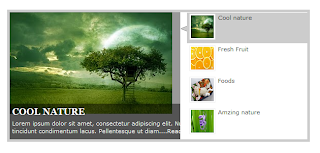
How to add stylish Jquery post widget to blogger

blogger,stylish,jquary,blogger tips,widget,post

This is cool widget to your blogger.you can get nice look to your blog.try it.
Click here to  DEMO

1. Log in to your blogger account and Go to Design >> Edit HTML

2. Put checked marked in Expand Widget Templates

3. Find this tag by using Ctrl+F 

4. Paste below code before ]]></b:skin> tag

#featured{
width:336px;
padding-right:250px;
position:relative;
height:250px;
background:#fff;
border:5px solid #ccc;
}
#featured ul.ui-tabs-nav{
    position:absolute;
    top:0; left:336px;
    list-style:none;
    padding:0; margin:0;
    width:250px;
}
#featured ul.ui-tabs-nav li{
    padding:1px 0; padding-left:13px;
    font-size:12px;
    color:#666;
}
#featured ul.ui-tabs-nav li span{
    font-size:11px; font-family:Verdana;
    line-height:18px;
}

#featured .ui-tabs-panel{
    width:336px; height:250px;
    background:#999; position:relative;
        overflow:hidden;
}
#featured .ui-tabs-hide{
    display:none;
}

#featured li.ui-tabs-nav-item a{/*On Hover Style*/
    display:block;
    height:60px;
    color:#333;  background:#fff;
    line-height:20px;
    outline:none;
}
#featured li.ui-tabs-nav-item a:hover{
    background:#f2f2f2;
}
#featured li.ui-tabs-selected{ /*Selected tab style*/
    background:url('https://blogger.googleusercontent.com/img/b/R29vZ2xl/AVvXsEgg_BKvAZUP1yJpRnxL13qxLED2JZ2v3ZC67pojylICRDf83DwOTHVdmAvLk3G7Tszi2VmSyJ04H7GP0AMyzKHuxdrEdsPXqm2avIRI_vBodGo6yAnsbXAtC9vVw38XwnSACKVVaGhDxJk/s1600/selected-item.gif') top left no-repeat;
}
#featured ul.ui-tabs-nav li.ui-tabs-selected a{
    background:#ccc;
}

#featured ul.ui-tabs-nav li img{
    float:left; margin:2px 5px;
    background:#fff;
    padding:2px;
    border:1px solid #eee;
}
#featured .ui-tabs-panel .info{
    position:absolute;
    top:180px; left:0;
    height:70px; width: 400px;
    background: url('https://blogger.googleusercontent.com/img/b/R29vZ2xl/AVvXsEj5LUxX7-vfxKvScKhO711kAejYCpbIqAuOn5R8wLvK1xInndQqjVboRN_c_pXSkKs_8rFTL2ajdkaviDsfdRqgMTJy9F91xPWMTlgvSyM0_bWzJQTyfGE-CP2VHLtc8fIUQyK5VdqMSbU/s1600/transparent-bg.png');
}
#featured .info h2{
    font-size:18px; font-family:Georgia, serif;
    color:#fff; padding:5px; margin:0;
    overflow:hidden;
}
#featured .info p{
    margin:0 5px;
    font-family:Verdana; font-size:11px;
    line-height:15px; color:#f0f0f0;
}
#featured .info a{
    text-decoration:none;
    color:#fff;
}
#featured .info a:hover{
    text-decoration:underline;
}

.ui-tabs-nav-item img {
width:45px;
height:45px;
}


5. Now find  </head> tag

6. Paste below code before </head> tag

<script src='http://ajax.googleapis.com/ajax/libs/jquery/1.3.2/jquery.min.js' type='text/javascript'/>

<script src='http://ajax.googleapis.com/ajax/libs/jqueryui/1.5.3/jquery-ui.min.js' type='text/javascript'/>

<script type='text/javascript'>

    $(document).ready(function(){

        $(&quot;#featured &gt; ul&quot;).tabs({fx:{opacity:
&quot;toggle&quot;}}).tabs(&quot;rotate&quot;, 5000,
true);

    });

</script>
7. Go to Design >> Page Element

8. Click Add Gadget and select 'HTML/Javascript'

9. Paste below one of below code.

<div id="featured">

          <ul class="ui-tabs-nav">
            <li class="ui-tabs-nav-item ui-tabs-selected">
<a href="#fragment-1">
<img alt="" src="https://blogger.googleusercontent.com/img/b/R29vZ2xl/AVvXsEi4I02EK5QTF_2mwbcujt1ux3JiTSWtTUqyajzYUNSvbA1-fEvCm547wLQFyd_9a6HoH6J3yy20CZdh-x019p1B1_9bWWO8pKUUZwQRSWiGpJAp2F1PBbj2z5jexfiNVTB8jUi6_Aqp1utM/s320/bloggertrix.1.jpg" />
<span>Cool nature</span></a></li>

            <li class="ui-tabs-nav-item">
<a href="#fragment-2">
<img alt="" src="https://blogger.googleusercontent.com/img/b/R29vZ2xl/AVvXsEg9AZib8YquFhuDG7K8HeRGeeRBulBTSBOBp0dpy0EnFSRzouUQH9cl3pLkK06kTyij9c61FqlswXFY8VFnr4tMHCWNhcZ1D37D88ousKZKhyKgFJ8wFz7JWQYnBvZtQdR9AHN9vBi66KYM/s320/bloggertrix.2.jpg" />
<span>Fresh  Fruit</span></a></li>

            <li class="ui-tabs-nav-item">
<a href="#fragment-3"><img alt="" src="https://blogger.googleusercontent.com/img/b/R29vZ2xl/AVvXsEj9JYfxoHky73uSXjbTbhFy0n4-4_Rc2YPvpvyLSNbuZW55BAzZclcC6ukqnh3d3MKDwM5RhUFtTONJio8ee3UAVL23Y3fA7fYbgwTI44URTAq82uFiHlqQsEAsaABO8lSbRHW6OqkvBo4b/s320/bloggertrix.5.jpg" /><span>Foods</span></a></li>

            <li id="nav-fragment-4" class="ui-tabs-nav-item">
<a href="#fragment-4">
<img alt="" src="https://blogger.googleusercontent.com/img/b/R29vZ2xl/AVvXsEjDDUP9INDV21_hhjE0HDUp5WERGF7hejBGAb3mNhumQsbD5U1FZvxGOgqNRVZPNJezKifHd-eoOwStXhRrG4yunDFkOn4tPST1LQBAfjUJd_kPU26ss00p8DhRyRs6ryAeJihdm-Lyo2sg/s320/bloggertrix.4.JPG" />
<span>Amzing nature</span></a></li>
          </ul>

        <!-- First Content -->
        <div id="fragment-1" style="" class="ui-tabs-panel">
            <img alt="" src="https://blogger.googleusercontent.com/img/b/R29vZ2xl/AVvXsEi4I02EK5QTF_2mwbcujt1ux3JiTSWtTUqyajzYUNSvbA1-fEvCm547wLQFyd_9a6HoH6J3yy20CZdh-x019p1B1_9bWWO8pKUUZwQRSWiGpJAp2F1PBbj2z5jexfiNVTB8jUi6_Aqp1utM/s320/bloggertrix.1.jpg" />

             <div class="info">
                <h2><a href="#fragment-1">Cool nature</a></h2>
                <p>Lorem ipsum dolor sit amet, consectetur adipiscing elit. Nulla tincidunt condimentum lacus. Pellentesque ut diam....<a href="#">Read more</a></p>
             </div>
        </div>

        <!-- Second Content -->
        <div id="fragment-2" style="" class="ui-tabs-panel">
            <img alt="" src="https://blogger.googleusercontent.com/img/b/R29vZ2xl/AVvXsEg9AZib8YquFhuDG7K8HeRGeeRBulBTSBOBp0dpy0EnFSRzouUQH9cl3pLkK06kTyij9c61FqlswXFY8VFnr4tMHCWNhcZ1D37D88ousKZKhyKgFJ8wFz7JWQYnBvZtQdR9AHN9vBi66KYM/s320/bloggertrix.2.jpg" />

             <div class="info">
                <h2><a href="#fragment-2">Fresh fruit</a></h2>
                <p>Vestibulum leo quam, accumsan nec porttitor a, euismod ac tortor. Sed ipsum lorem, sagittis non egestas id, suscipit....<a href="#">Read more</a></p>
             </div>
        </div>

        <!-- Third Content -->
        <div id="fragment-3" style="" class="ui-tabs-panel">
            <img alt="" src="https://blogger.googleusercontent.com/img/b/R29vZ2xl/AVvXsEi4I02EK5QTF_2mwbcujt1ux3JiTSWtTUqyajzYUNSvbA1-fEvCm547wLQFyd_9a6HoH6J3yy20CZdh-x019p1B1_9bWWO8pKUUZwQRSWiGpJAp2F1PBbj2z5jexfiNVTB8jUi6_Aqp1utM/s320/bloggertrix.1.jpg" />

             <div class="info">
                <h2><a href="#fragment-3">Foods</a></h2>
                <p>liquam erat volutpat. Proin id volutpat nisi. Nulla facilisi. Curabitur facilisis sollicitudin ornare....<a href="#">Read more</a></p>
             </div>
        </div>

        <!-- Fourth Content -->
        <div id="fragment-4" style="" class="ui-tabs-panel ui-tabs-hide">
            <img alt="" src="https://blogger.googleusercontent.com/img/b/R29vZ2xl/AVvXsEjDDUP9INDV21_hhjE0HDUp5WERGF7hejBGAb3mNhumQsbD5U1FZvxGOgqNRVZPNJezKifHd-eoOwStXhRrG4yunDFkOn4tPST1LQBAfjUJd_kPU26ss00p8DhRyRs6ryAeJihdm-Lyo2sg/s320/bloggertrix.4.JPG" />

             <div class="info">
                <h2><a href="#fragment-4">AMzing nature</a></h2>
                <p>Quisque sed orci ut lacus viverra interdum ornare sed est. Donec porta, erat eu pretium luctus, leo augue sodales....<a href="#">Read more</a></p>
             </div></div>
<a href="http://www.bloggertrix.com"><img alt="Best Bloger tricks" src="http://img1.blogblog.com/img/blank.gif"/>
</a></div>

*Replace red URL with your image URL
* If you want you can replace  #fragment-1 to #fragment-4 with your link URL

10. Save it. you are done. 

How Add Attractive Jquery Slide Show Feature For Blogger

Jquery Slide Show Feature


Actually slide show helps to show main ideas of our blog. If we are doing some service via  blog. we can add  images with description  which according to our service.So adding  slide show getting more eye contact.So, there have more advantage of adding it.you  can check my earlier slideshow.How Add  Cool Jquery Slide Show For Blogger Follow these simple steps to add it to your
blog. check below link for demo.


DEMO

1.
Log in to your blogger account and Go to Design >> Edit HTML

2. Find this tag by using Ctrl+F    </head>

3. Paste below code before </head> tag


 <style type='text/css'>
#s3slider {
background: none repeat scroll 0 0 #FFFFFF;
border: 4px solid #149CD5;
height: 280px;
margin-bottom: 25px;
margin-top: 0;
overflow: hidden;
position: relative;
text-shadow: 0 1px 0 #000000;
width: 585px;
}
#s3sliderContent {
background: none repeat scroll 0 0 #FFFFFF;
height: 300px;
list-style: none outside none;
margin-left: 0;
overflow: hidden;
padding: 0;
position: absolute;
top: -14px;
width: 585px;
}
.s3sliderImage {
float: left;
position: relative;
width: 585px;
}
.s3sliderImage span {
background-color: #000000;
color: #FFFFFF;
display: none;
font-size: 12px;
height: 300px;
line-height: 16px;
opacity: 0.7;
overflow: hidden;
padding: 10px 13px;
position: absolute;
right: 0;
top: 0;
width: 180px;
}
.s3sliderImage strong a {
font-family: 'Myriad Pro',Helvetica,Arial,Sans-Serif;
font-size: 20px;
}
.s3sliderImage strong a:hover {
color: #FFFFFF;
}
</style>

<script src='https://ajax.googleapis.com/ajax/libs/jquery/1.4.4/jquery.min.js' type='text/javascript'></script>

<script type='text/javascript'>
//<![CDATA[
/* ------------------------------------------------------------------------
 s3Slider

 Developped By: Boban KariÅ¡ik -> http://www.serie3.info/
        CSS Help: Mészáros Róbert -> http://www.perspectived.com/
 Version: 1.0

 Copyright: Feel free to redistribute the script/modify it, as
      long as you leave my infos at the top.
-------------------------------------------------------------------------- */


(function($){ 

    $.fn.s3Slider = function(vars) {      
       
        var element     = this;
        var timeOut     = (vars.timeOut != undefined) ? vars.timeOut : 4000;
        var current     = null;
        var timeOutFn   = null;
        var faderStat   = true;
        var mOver       = false;
        var items       = $("#" + element[0].id + "Content ." + element[0].id + "Image");
        var itemsSpan   = $("#" + element[0].id + "Content ." + element[0].id + "Image span");
           
        items.each(function(i) {
   
            $(items[i]).mouseover(function() {
               mOver = true;
            });
           
            $(items[i]).mouseout(function() {
                mOver   = false;
                fadeElement(true);
            });
           
        });
       
        var fadeElement = function(isMouseOut) {
            var thisTimeOut = (isMouseOut) ? (timeOut/2) : timeOut;
            thisTimeOut = (faderStat) ? 10 : thisTimeOut;
            if(items.length > 0) {
                timeOutFn = setTimeout(makeSlider, thisTimeOut);
            } else {
                console.log("Poof..");
            }
        }
       
        var makeSlider = function() {
            current = (current != null) ? current : items[(items.length-1)];
            var currNo      = jQuery.inArray(current, items) + 1
            currNo = (currNo == items.length) ? 0 : (currNo - 1);
            var newMargin   = $(element).width() * currNo;
            if(faderStat == true) {
                if(!mOver) {
                    $(items[currNo]).fadeIn((timeOut/6), function() {
                        if($(itemsSpan[currNo]).css('bottom') == 0) {
                            $(itemsSpan[currNo]).slideUp((timeOut/6), function() {
                                faderStat = false;
                                current = items[currNo];
                                if(!mOver) {
                                    fadeElement(false);
                                }
                            });
                        } else {
                            $(itemsSpan[currNo]).slideDown((timeOut/6), function() {
                                faderStat = false;
                                current = items[currNo];
                                if(!mOver) {
                                    fadeElement(false);
                                }
                            });
                        }
                    });
                }
            } else {
                if(!mOver) {
                    if($(itemsSpan[currNo]).css('bottom') == 0) {
                        $(itemsSpan[currNo]).slideDown((timeOut/6), function() {
                            $(items[currNo]).fadeOut((timeOut/6), function() {
                                faderStat = true;
                                current = items[(currNo+1)];
                                if(!mOver) {
                                    fadeElement(false);
                                }
                            });
                        });
                    } else {
                        $(itemsSpan[currNo]).slideUp((timeOut/6), function() {
                        $(items[currNo]).fadeOut((timeOut/6), function() {
                                faderStat = true;
                                current = items[(currNo+1)];
                                if(!mOver) {
                                    fadeElement(false);
                                }
                            });
                        });
                    }
                }
            }
        }
       
        makeSlider();
    }; 
})(jQuery); 
//]]>
</script>
<script type='text/javascript'>
$(document).ready(function() {
$('#s3slider').s3Slider({
timeOut: 4000
});
});
</script>

6. Find this code by using Ctrl+F <div id="main-wrapper">

7.  Paste below code before <div id="main-wrapper">  code

<div id="s3slider">

<ul id="s3sliderContent">
<li class="s3sliderImage">
<img src="https://blogger.googleusercontent.com/img/b/R29vZ2xl/AVvXsEiI8RGWY1Q_oPMnDj4adOr6pkeysF9Rhv0FlWVYOHL1sp6tV-KNximb0WEVtRimF8p1dZ1D2mXC4ENBooSMVMXK5j1va2p1PIW2UVw98hcE-S8yYGqI5T6qJqsxmOixAJbmT_acJaBRQXU/s1600/image1.jpg" />
<span><strong><a href="ADD HERE POST1 URL">POST TITLE</a></strong>
<p>DESCRIPTION</p>
</span>
</li>

<li class="s3sliderImage">
<img src="https://blogger.googleusercontent.com/img/b/R29vZ2xl/AVvXsEjTrErUJpzcjuuWi8M1gt2deqmJW-JBaYGQPhYuXxvXFPEXul1EUZOq20VpCVHdHLIgE0IyDuWSHngxDrtZa-vLYMMZyNssblt01trY-jR002U8xlwVs2KrqtsISP5s92M-RAHHdp1IxQY/s1600/image2.jpg" />
<span><strong><a href="ADD HERE POST2 URL">POST TITLE</a></strong>

<p>DESCRIPTION</p>

</span>
</li>
<li class="s3sliderImage">
<img src="https://blogger.googleusercontent.com/img/b/R29vZ2xl/AVvXsEi-hrJDvvUTDEzi_JLpo4Iwrn1nj9dUYeZK2LREwt32QaQHsTxM0xNq88XQAGKWAO6ggqgadM0t04RMmDHhxrxIX_KxtTrZGsp2CocS8XM_AJYtY_1k7hX_KjZ0r8UGSmBXYq44vYNSQX4/s1600/image5.jpg" />
<span><strong><a href="ADD HERE POST2 URL">POST TITLE</a></strong>

<p>DESCRIPTION</p>

</span>
</li>

<li class="s3sliderImage">
<img src="https://blogger.googleusercontent.com/img/b/R29vZ2xl/AVvXsEgfpL0lJstAZyxMdKcjBbNf4kDrpoDv3MOYPjrXZL_KK1sTx_FPIc99CYFDeUF1cTsrxfIgsTwto6CJWTAjfe6_rtuCMFRx5b-V4qemoPCkC93P_UZuaZsSUQx_u9HlI_hriWrlj4DjfuU/s1600/image6.png" />
<span><strong><a href="ADD HERE POST2 URL">POST TITLE</a></strong>

<p>DESCRIPTION</p>

</span>
</li>
<div class="clear s3sliderImage"></div>
</ul>
</div>

* Replace Post Title with your title
* Replace DESCRIPTION with your short description.
* You can change the images by changing links.

9. Now save your template
You are done.
 

10 Sept 2012

Attractive Photo Gallery With Jquery Zoom Effect

jquery-zoom-effect
In this tutorial im present a how to add photo galley with Jquery zoom effect.Its nice effect for your blog. So, you can add this feature with HTML/Javascript gadget. You can get earlier photo effect form below link.
Awesome CSS Filter Effects For Blogger


DEMO

1. Log in to blogger account and Go to Design >> Edit HTML

2. Find this tag by using Ctrl+F    ]]></b:skin>

3. Paste below code Before ]]></b:skin> tag


/* Blogger Zoom Gallery  */
ul.thumb {
float: left;
list-style: none;
margin: 0; padding: 10px;
width: 360px;
}
ul.thumb li {
margin: 0; padding: 5px;
float: left;
position: relative;  /* Set the absolute positioning base coordinate */
width: 110px;
height: 110px;
}
ul.thumb li img {
width: 100px; height: 100px; /* Set the small thumbnail size */
-ms-interpolation-mode: bicubic; /* IE Fix for Bicubic Scaling */
border: 1px solid #ddd;
padding: 5px;
background: #f0f0f0;
position: absolute;
left: 0; top: 0;
}
ul.thumb li img.hover {
background:url(https://blogger.googleusercontent.com/img/b/R29vZ2xl/AVvXsEhgPjCHcWUu4QXyEyb-V3hyphenhyphenupU_xN8lSQuvSiMnA546RmkCrjJXCM7jU4upB5wxGsuK-ejMs7tnd3XeW0ufh8xEh1ALu87eh2TbhDYHuHFZfPsp6OlS6-LaGfzBFAHACH_3CPuNopyYT-KD/) no-repeat center center;  /* Image used as background on hover effect
border: none; /* Get rid of border on hover */
}

4. Paste below code Before </head> tag

<script src='http://code.jquery.com/jquery-latest.js'
type='text/javascript'/>
<script type='text/javascript'>
$(document).ready(function(){

//Larger thumbnail preview

$(&quot;ul.thumb li&quot;).hover(function() {
$(this).css({&#39;z-index&#39; : &#39;10&#39;});
$(this).find(&#39;img&#39;).addClass(&quot;hover&quot;).stop()
.animate({
marginTop: &#39;-110px&#39;,
marginLeft: &#39;-110px&#39;,
top: &#39;50%&#39;,
left: &#39;50%&#39;,
width: &#39;174px&#39;,
height: &#39;174px&#39;,
padding: &#39;20px&#39;
}, 200);

} , function() {
$(this).css({&#39;z-index&#39; : &#39;0&#39;});
$(this).find(&#39;img&#39;).removeClass(&quot;hover&quot;).stop()
.animate({
marginTop: &#39;0&#39;,
marginLeft: &#39;0&#39;,
top: &#39;0&#39;,
left: &#39;0&#39;,
width: &#39;100px&#39;,
height: &#39;100px&#39;,
padding: &#39;5px&#39;
}, 400);
});

//Swap Image on Click
$(&quot;ul.thumb li a&quot;).click(function() {

var mainImage = $(this).attr(&quot;href&quot;); //Find Image Name
$(&quot;#main_view img&quot;).attr({ src: mainImage });
return false;
});

});
</script>

5. Go to blogger  Design > Page Element.

6. Click Add Gadget and select 'HTML/Javascript

7. Paste below code.

<ul class="thumb">
<li><a href="#"><img src="picture Link 1" alt="" /></a></li>
<li><a href="#"><img src="picture Link 2" alt="" /></a></li>
<li><a href="#"><img src="picture Link 3" alt="" /></a></li>
<li><a href="#"><img src="picture Link 4 " alt="" /></a></li>
</ul>

*Replace Picture Link With your image URL

7. Now save your HTML/Javascript'.

    You are done... 
Related Posts Plugin for WordPress, Blogger...

Subscribe Updates, Its FREE!